A useful thought rarely arrives when I am sitting neatly in front of the correct document.
It arrives after a meeting. While I am walking, driving or running. When I remember a promise I made. Late in the evening, when two disconnected pieces of a project suddenly fit together.
For years, I had two options. I could interrupt whatever I was doing and try to organise the thought properly, or I could trust myself to remember it later.
Neither worked reliably.
Since I started working with Claude I have been experimenting with various setups to help me manage my multi-asset life. All previous attempts still required some manual work. And finally last week I created a different workflow.
I speak into my iPhone.
A Shortcut converts my speech to text and sends it to Gmail.
Every morning, Claude Code collects the new captures, connects them to the right projects and prepares my morning report.
When I sit down at 9:00, the information is already waiting for me.
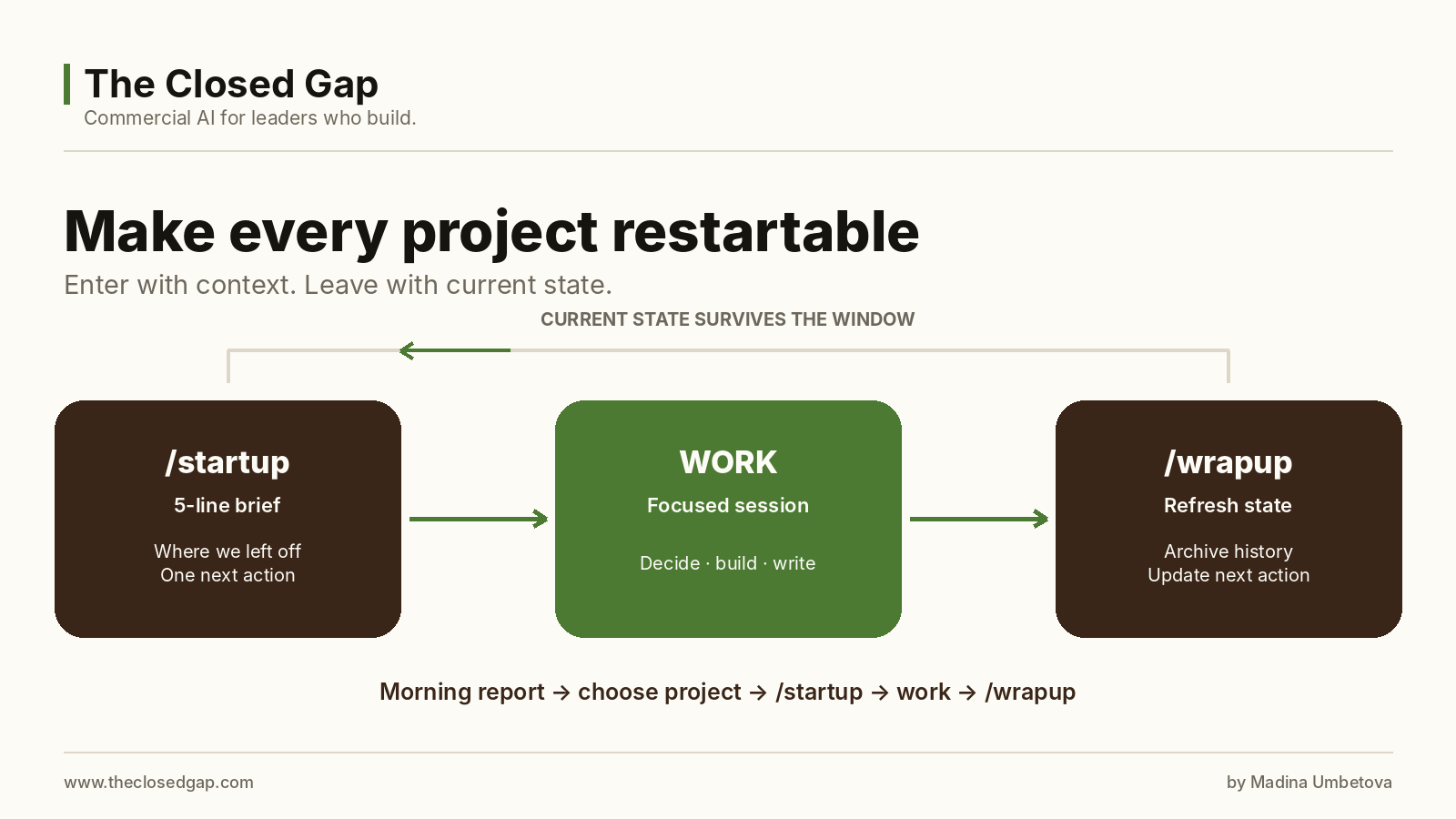
Then I enter each project with /startup. Claude restores the current state, the last decision and the one next action. When I finish, /wrapup updates the files so I can close the window without losing the project.
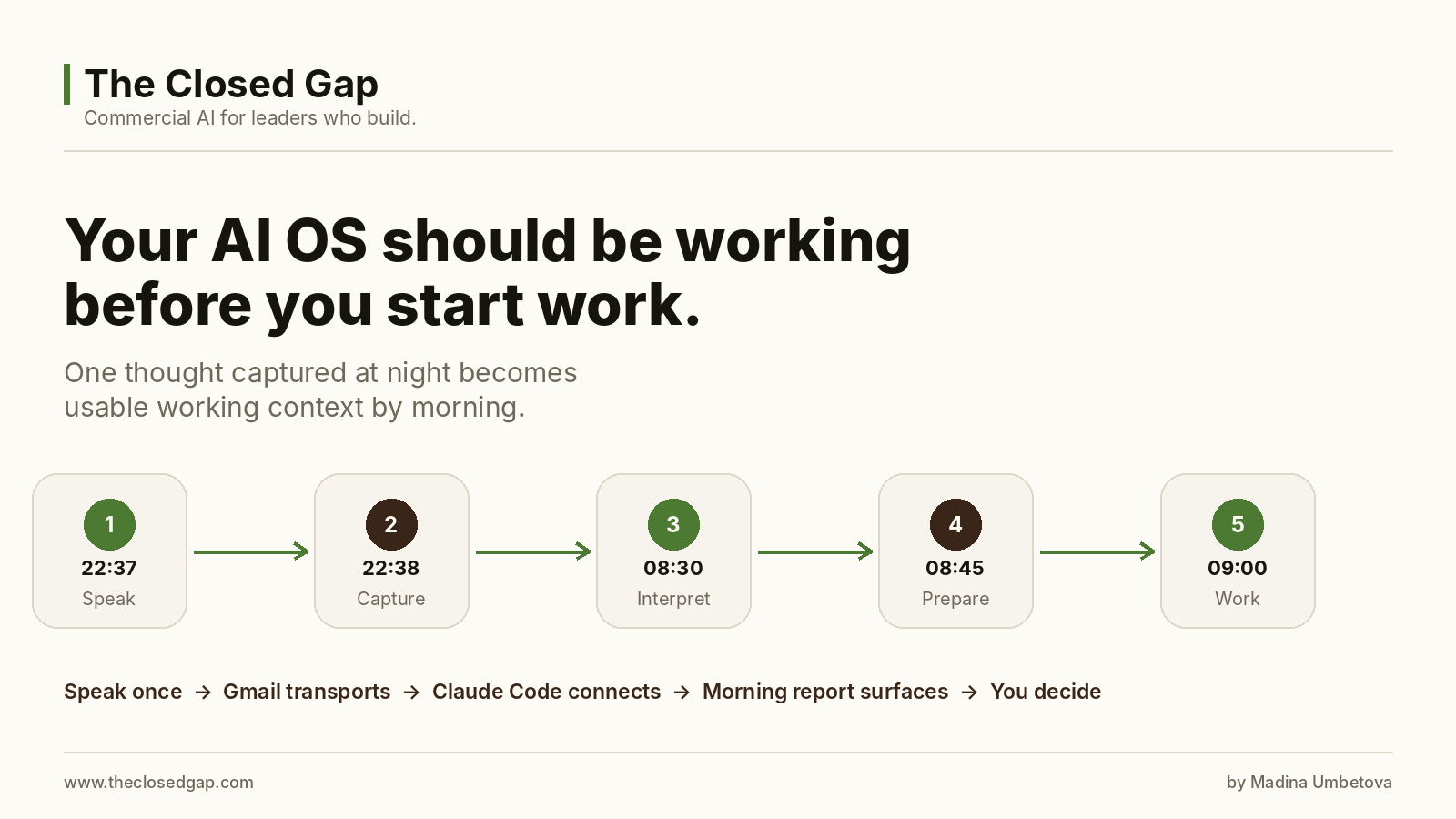
The human part of the system is very small:
Speak during the day
        ↓
Read one report in the morning
        ↓
Choose a project
        ↓
/startup → work → /wrapup
The organisation happens in the background.
In my first article about building a Personal OS with AI, I explained why I needed a system outside my own memory. This guide is the practical installation: the exact workflow, files and prompts behind the version I now use.
Setup time: approximately 60 minutes
Daily effort: speak when needed, then read one short report
What you need: an iPhone, Gmail, a Mac and Claude Code
Technical level: beginner-friendly until the Gmail connection; that section is a one-time setup
The whole system on one page
The system has five layers:
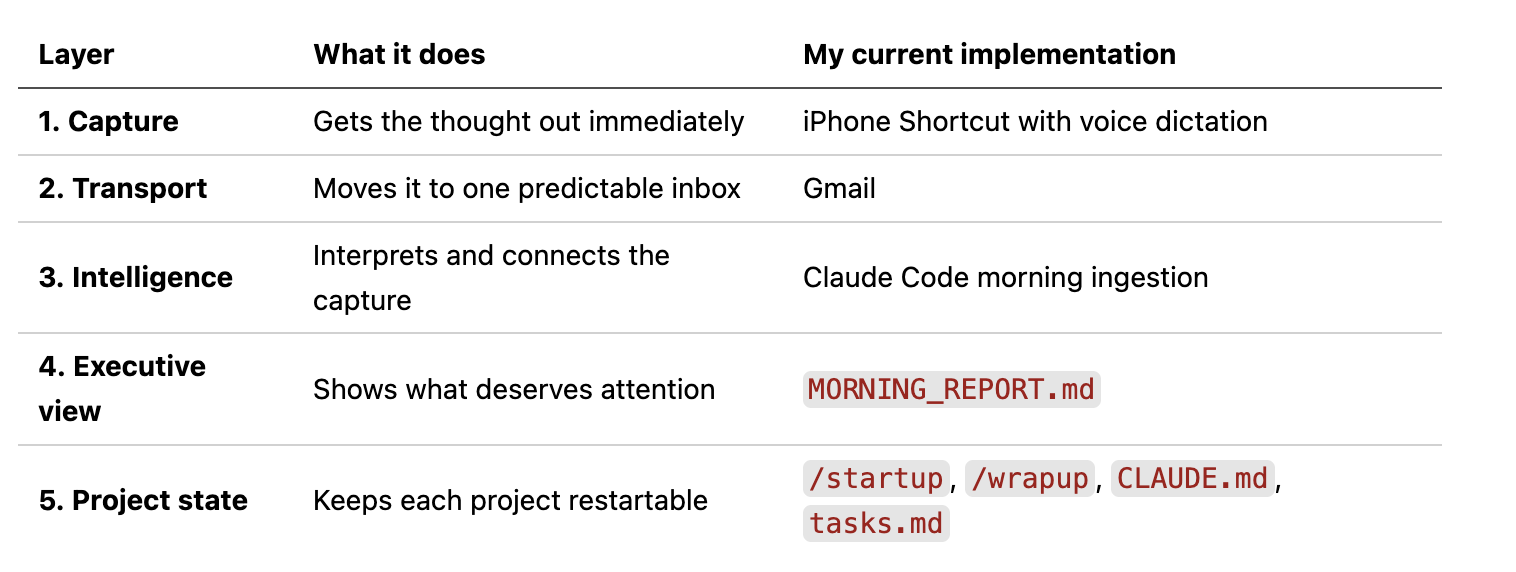
This distinction matters. A notes app stores what you tell it. An operating system returns the right information at the point of action.
Part 1: Build the voice capture shortcut
The first layer must be easier than relying on memory.
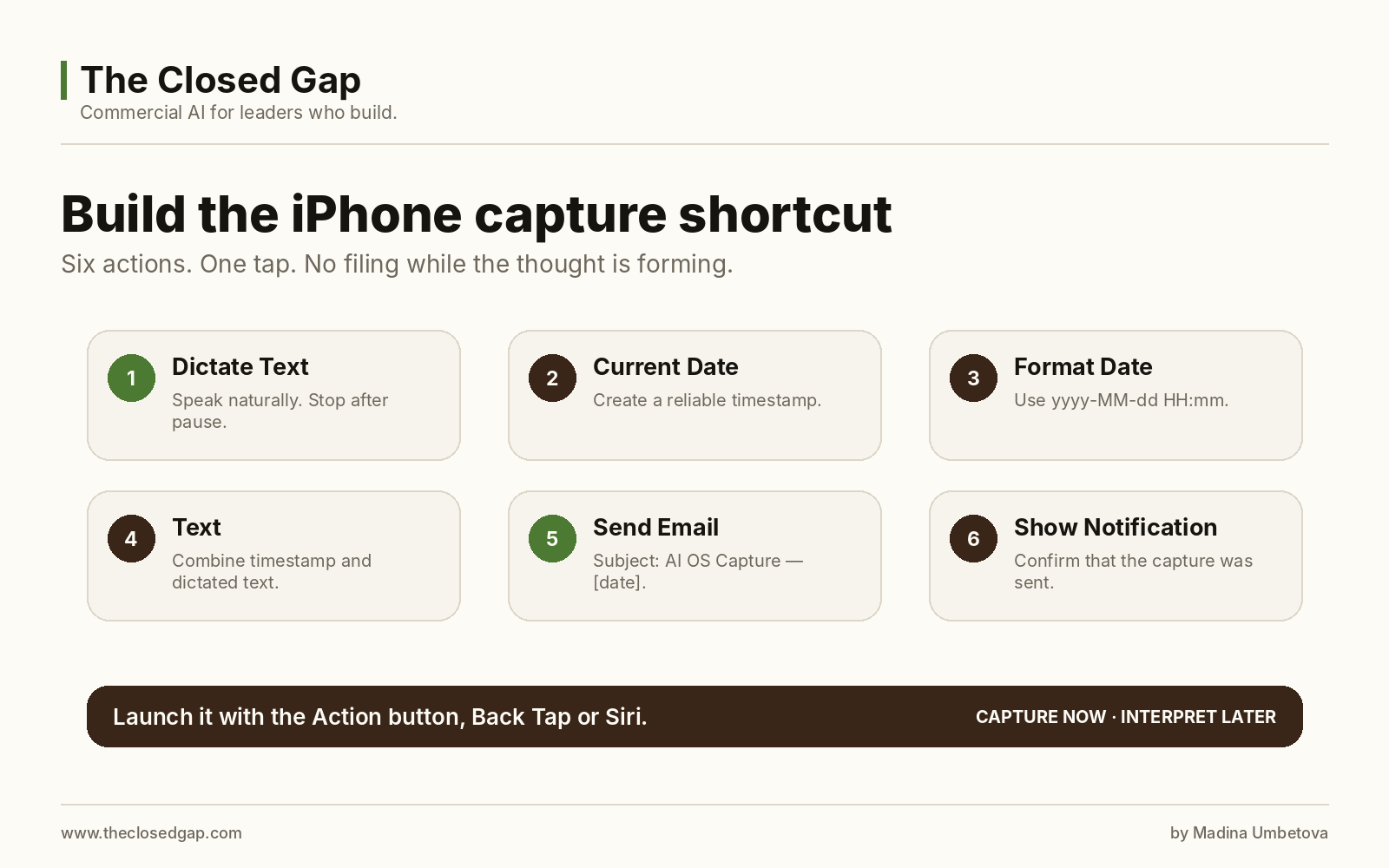
Apple Shortcuts can combine several actions into a single workflow and pass the output of one action into the next. The final shortcut will listen, add a timestamp, create an email and confirm that the capture was sent.
Step 1: Create a new shortcut
On your iPhone:
Open Shortcuts app.
Tap the + button.
Tap the shortcut name at the top and rename it AI OS Capture.
Tap Add Action.
Add the following actions in this order.
Action 1 — Dictate Text
Search for:
Dictate TextSet it to stop listening After Pause. If you pause frequently while thinking, use the manual stop option available on your phone.
This is the only input step. You run the shortcut and speak naturally.
Action 2 — Current Date
Search for:
Current DateThis gives every capture a reliable timestamp.
Action 3 — Format Date
Search for:
Format DateChoose a custom format:
yyyy-MM-dd HH:mmThis makes the captures easy to sort and trace.
Action 4 — Text
Add a Text action and enter:
Captured: [Formatted Date]

[Dictated Text]
Do not type the bracketed terms as normal text. Tap inside the field, choose Select Variable, then insert the output from Format Date and Dictate Text as Magic Variables.
Action 5 — Send Email
Search for:
Send EmailConfigure it like this:
To: your own Gmail address
Subject: AI OS Capture — [Formatted Date]
Message: [Text]
Insert the variables from the earlier actions.
Turn off Show Compose Sheet when the option is available. The email should leave the phone without creating another manual step. The first run may ask for permission to use Mail; approve only the access required for the shortcut.
Action 6 — Show Notification
Search for:
Show NotificationUse a simple message:
CapturedNow tap Done.
Make it effortless to launch
Choose the route that creates the least friction for you:
Siri: say, “Hey Siri, AI OS Capture.”
Action button: assign the shortcut in Settings → Action Button → Shortcut on a supported iPhone.
Back Tap: go to Settings → Accessibility → Touch → Back Tap and assign it to a double or triple tap.
Home Screen: open the shortcut menu and choose Add to Home Screen.
My preference is the Action button. It turns capture into one press and one sentence.
Test it before moving on
Run the shortcut and say:
Test capture. I need to review the launch page tomorrow. This belongs to the SayOnce project.
Open Gmail and confirm that:
the message arrived;
the subject contains
AI OS Capture;the body contains your words and the timestamp.
Do not build the rest until this step works reliably.
Part 2: Use Gmail as the transport layer
Gmail carries the capture from the phone to the system. The durable knowledge will live in files on your computer.
Create two labels
In Gmail on the web, create:
AI_OS_CAPTURE
AI_OS_PROCESSED
Simple names make the later automation easier.
Create the filter
Click the search-options icon inside the Gmail search bar.
In Subject, enter:
AI OS CaptureClick Create filter.
Select Apply the label →
AI_OS_CAPTURE.Optional: select Skip the Inbox so voice captures do not clutter normal email.
Click Create filter.
Send another test capture and confirm that Gmail applies the label automatically.
The processing rule will be:
AI_OS_CAPTURE + no AI_OS_PROCESSED label = new captureOnce a message has been written safely to the local system, the importer adds AI_OS_PROCESSED. That gives you a visible audit trail and prevents repeated ingestion.
Part 3: Create the AI OS folder on your Mac
Open Terminal and run:
mkdir -p ~/Documents/AI-OS/{inbox,projects,_archive,scripts,.claude/skills/morning}
cd ~/Documents/AI-OS
touch DASHBOARD.md MORNING_REPORT.md CLAUDE.md
The structure should now look like this:
AI-OS/
├── CLAUDE.md
├── DASHBOARD.md
├── MORNING_REPORT.md
├── inbox/
├── projects/
├── scripts/
├── _archive/
└── .claude/
    └── skills/
        └── morning/⁄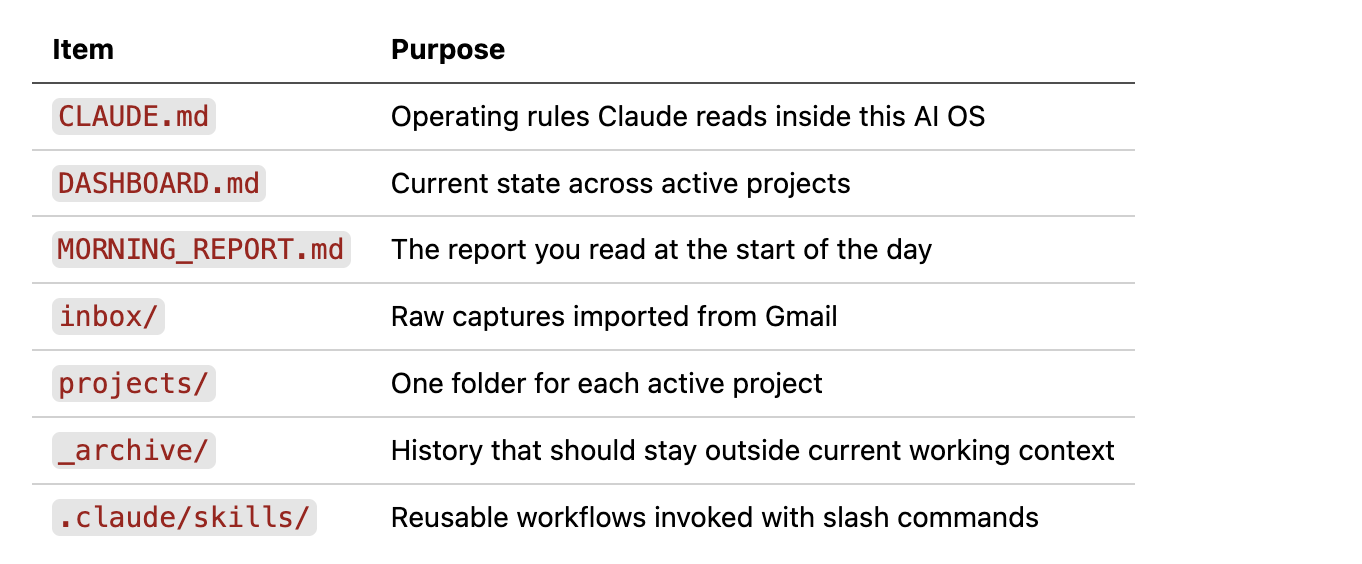
Part 4: Install Claude Code
Anthropic currently recommends the native installer for macOS and Linux:
curl -fsSL https://claude.ai/install.sh | bashThen open the AI OS folder and start Claude Code:
cd ~/Documents/AI-OS
claude
On first launch, Claude Code opens a browser sign-in flow. It can work with a Claude.ai subscription or other supported account types.
Claude Code reads project instructions from CLAUDE.md, can edit files in the working directory and asks for permission before commands that can change your system.
Add the global operating rules
Open ~/Documents/AI-OS/CLAUDE.md and paste:
# AI OS operating rules

- This folder is a personal operating system, not a general scratchpad.
- Preserve the user's exact meaning. Do not invent dates, people,
  commitments, decisions or project links.
- Raw captures enter through `inbox/`.
- Cross-project current state lives in `DASHBOARD.md`.
- Today's executive view lives in `MORNING_REPORT.md`.
- Every active project has exactly two current-state files:
  `CLAUDE.md` and `tasks.md`.
- Current state is rewritten in place. Narrative history goes to `_archive/`.
- Every active project must have one clear next action.
- Items that cannot be routed confidently go to `Needs my decision`.
- Do not convert every idea into a task.
- Never delete or mark a source capture processed until the information
  has been written successfully and can be traced back to its source.
Part 5: Connect Gmail to Claude
Open Claude.
Go to Settings → Connectors.
Find Gmail and select Connect.
Sign in to the Gmail account receiving your AI OS captures.
Approve the requested access.
Then open Claude Code and run:
/mcpConfirm that Gmail is available.
Test the connection
Ask Claude Code:
Use the Gmail connection to find my most recent email with the label
AI-OS-Capture.

Show me the subject, date and message content.
Do not update any files yet.
When Claude returns the correct capture, the connection is working.
Gmail is only the transport layer. Your durable project state, decisions and commitments remain in files on your computer.
Part 6: Build the morning report
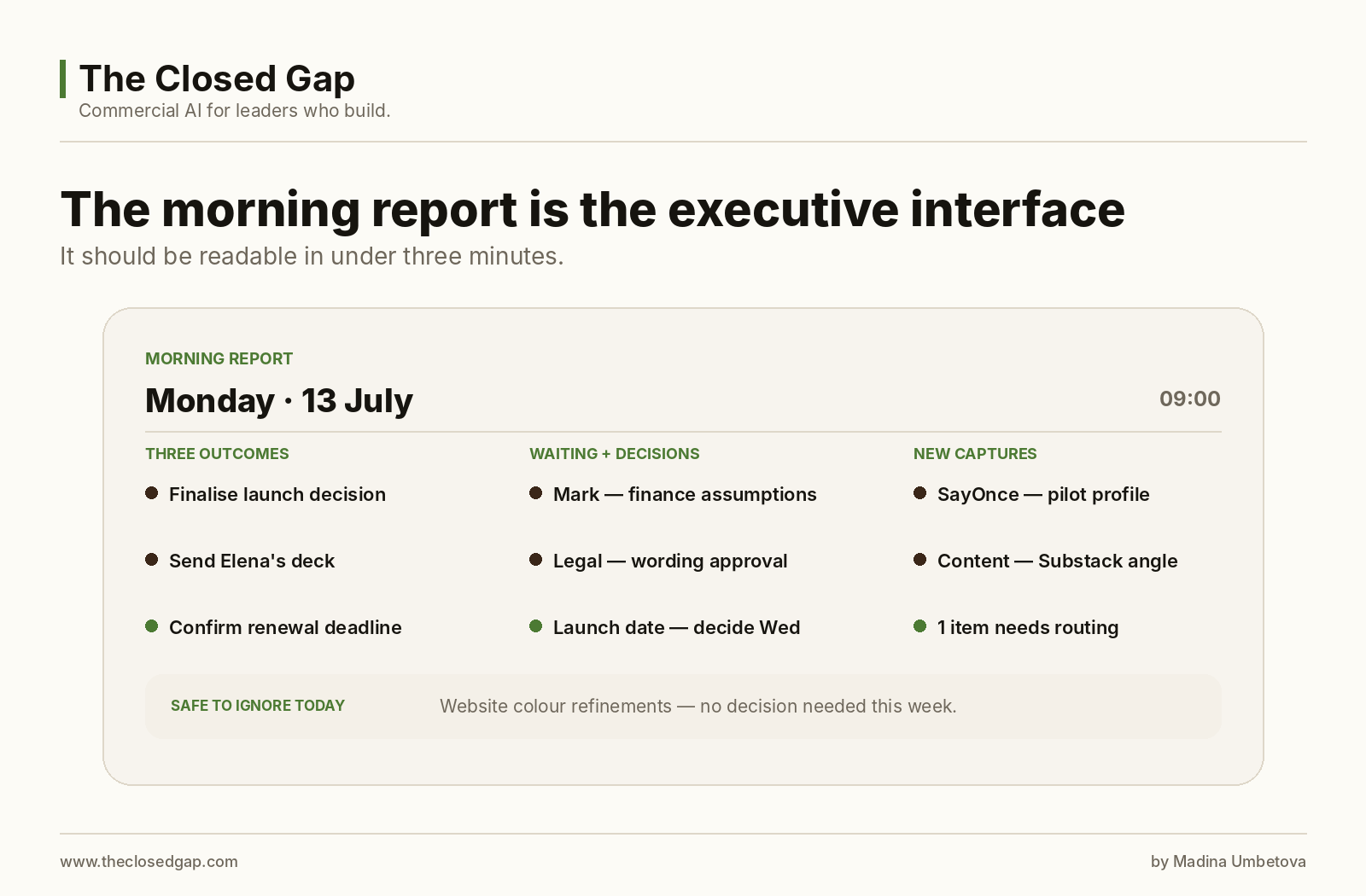
The morning report is the executive interface. It should tell you what deserves attention without forcing you to inspect every raw capture.
Claude Code skills are Markdown instructions saved in SKILL.md. You can invoke a skill directly by typing its slash command.
Create:
~/Documents/AI-OS/.claude/skills/morning/SKILL.md
Paste:
---
name: morning
description: Read new voice captures from Gmail, connect them to my
  projects and prepare today's executive morning report.
---

When I run /morning:

1. Read:
   - ~/Documents/AI-OS/DASHBOARD.md
   - ~/Documents/AI-OS/_archive/processed-gmail.md
   - the current CLAUDE.md and tasks.md files for active projects

2. Use the Gmail connection to find all emails with the label
   AI-OS-Capture received since the previous completed morning run.

3. For each new capture:
   - understand what I meant, rather than merely summarising the words;
   - separate multiple items contained in one message;
   - identify relevant people, projects, dates and deadlines;
   - distinguish tasks, commitments, waiting-for items, decisions,
     decision dependencies, ideas and useful context;
   - do not turn every idea into a task;
   - connect the information to an existing project when confidence
     is high;
   - place uncertain items under Needs Review.

4. Update durable project files only when the destination is clear.

5. Create today's morning report with:
   - three outcomes requiring attention;
   - commitments due or at risk;
   - people waiting for me;
   - items I am waiting for;
   - decisions approaching;
   - project updates captured since yesterday;
   - items that could not be placed confidently;
   - one thing I should deliberately ignore today.

6. After the report and file updates succeed, append each processed
   source email to processed-gmail.md.

7. Never mark an email as processed if the run fails before completion.
Restart Claude Code if the new skill does not appear, then run:
/morningWhat a useful report looks like
# Morning Report — 2026-07-13

## Three outcomes that deserve attention

1. Finalise the launch decision after the finance assumptions arrive.
2. Send Elena the revised presentation promised for Tuesday.
3. Confirm the renewal deadline in the supplier contract.

## Commitments due or at risk

- Elena — revised presentation — due Tuesday

## Waiting for

- Mark — finance assumptions — follow up Monday afternoon

## Decisions approaching

- Launch date
  - Missing input: finance assumptions
  - Desired decision date: Wednesday

## New captures by project

### SayOnce
- Test the phrase: “Say it once. Let the system carry it.”

### Content Engine
- Substack angle: the AI OS should prepare the workday before 9:00.

## Needs my decision

- “Test this with Basel executives.”
  Suggested project: SayOnce

## Safe to ignore today

- Website colour refinements — no decision needed this week.
The report is a prioritisation layer, not a transcript. It should shorten the distance between remembering and acting.
Part 7: Give every project persistent state
The morning report handles the cross-project view. Each project needs a small current record of where the work stands.
Inside projects/, create one folder per active project:
projects/SayOnce/
├── CLAUDE.md
├── tasks.md
└── _archive/
    └── session-log.md
Project CLAUDE.md: current state only
Use this structure:
# Project: SayOnce

## What this project is

## Current stage

## Decisions with dates

## Constraints

## Current risks

## File map
Rewrite this file as the project changes. Keep the history in _archive/session-log.md.
tasks.md: one stable shape
# Tasks

## Now

## Next

## Blocked

## Waiting on me

## Done
- YYYY-MM-DD — completed item
The two sections I check most often are:
Now: the small number of items currently in motion;
Waiting on me: everything stalled because I have not acted.
Every active project also needs exactly one next action.
Part 8: Create /startup and /wrapup
These two commands let you close a project and trust that it can be restarted later.
Create /startup
Create:
~/.claude/skills/startup/SKILL.mdPaste:
---
name: startup
description: Read the dashboard and current project state, then brief me before work begins.
---

When I run /startup:
1. Read ~/Documents/AI-OS/DASHBOARD.md.
2. Read this project's CLAUDE.md and tasks.md.
3. Read today's relevant section in
   ~/Documents/AI-OS/MORNING_REPORT.md.
4. Brief me in exactly 5 lines:
   - what this project is
   - where we left off
   - the one next action
   - what is blocked on me
   - anything time-sensitive
5. Stop. Do no work until I respond.
Create /wrapup
Create:
~/.claude/skills/wrapup/SKILL.mdPaste:
---
name: wrapup
description: Preserve the session, refresh current state and make the project restartable.
---

When I run /wrapup:
1. Append a dated session summary to `_archive/session-log.md`.
2. Refresh tasks.md:
   - move finished items to Done with today's date
   - update Now, Next, Blocked and Waiting on me
   - keep narrative session history out of the task list
3. Rewrite CLAUDE.md to current state only.
4. Keep CLAUDE.md concise and under 8KB where practical.
5. Update this project's row in ~/Documents/AI-OS/DASHBOARD.md.
6. Confirm exactly one next action for the next session.
7. If the folder is a Git repository, show the proposed commit before
   committing.
8. Give me a three-line summary of what changed.
The daily project rhythm is now:
Morning report
      ↓
Choose the project that deserves attention
      ↓
/startup
      ↓
Focused work
      ↓
/wrapup
      ↓
Close the window without losing the state
Part 9: Build the dashboard
Create DASHBOARD.md:
# Dashboard — updated YYYY-MM-DD

## Active

| Project | Path | Status | One next action | Waiting on me | Last session |
|---|---|---|---|---|---|
| SayOnce | ~/Documents/AI-OS/projects/SayOnce | ACTIVE | Test capture flow | Confirm pilot users | YYYY-MM-DD |

## Paused

| Project | Since | Reason | Restart trigger |
|---|---|---|---|

## Rules

1. Maximum ten active projects.
2. Every active project has one next action.
3. Check Waiting on me daily.
4. Current state stays in project files.
5. Narrative history stays in `_archive`.
This dashboard answers one cross-project question:
Where does my attention create movement today?
Part 10: Optional scheduling before 9:00
The reliable first version is one manual command:
/morningIt imports the captures and generates the report.
Once the loop works consistently, you can schedule it on your Mac with launchd and Claude Code’s non-interactive -p mode.
Paste this request into Claude Code:
Create a macOS launchd job for this AI OS.

It should run on weekdays at 08:30, change directory to
~/Documents/AI-OS, and execute Claude Code in non-interactive mode with
an instruction to run the /morning skill and finish after the report is
written.

Requirements:
- use absolute paths
- write stdout and stderr to ~/Documents/AI-OS/_archive/logs/
- create the logs directory if needed
- do not expose credentials, tokens or message content in the plist
- validate the plist before loading it
- show me the plist and every install command before making changes
- include a manual test command
- explain how to unload, disable and delete the job
- explain what happens if the Mac is asleep or not logged in
Test the scheduled job while you are present. Keep /morning as the fallback. The Mac needs to be available to run local work; a sleeping or powered-off computer cannot prepare a local report at the promised time.
How to speak so the system can help you
You do not need special syntax. Full context improves routing.
A strong capture sounds like this:
For SayOnce: after speaking with Anna, I think the first pilot should focus on people managing at least five live projects. I promised to send her the outline on Thursday. I still need to decide whether the first version includes calendar retrieval.
That one capture contains:
a project update;
a hypothesis about the pilot audience;
a commitment to Anna;
a deadline;
an unresolved product decision.
You should not have to separate those manually while the thought is forming.
Useful things to capture
commitments you made;
something another person owes you;
the reasoning behind a decision;
a thought linked to a project;
a deadline or financial consequence;
person-specific context needed for a future conversation;
an idea you want preserved without activating it yet;
an unresolved loop that keeps returning to your mind.
Words that help preserve meaning
Natural phrases such as these improve accuracy:
I promised...
I am waiting for...
This belongs to...
I decided...
The reason was...
Do not turn this into a task yet...
Follow up if...
I still need to decide...
They are not commands. They are ordinary language carrying useful intent.
Test the system before trusting it
Create three deliberate captures.
Capture 1 — commitment
I promised Daniel the proposal by Friday. This belongs to the advisory project.
Capture 2 — waiting for
I am waiting for Lea to confirm the workshop date. If she has not replied by Wednesday, follow up.
Capture 3 — idea without commitment
Idea for later: a short executive workshop on building an AI OS. Do not turn this into an active task yet.
The morning report should preserve those three meanings.
Then test retrieval:
What did I promise Daniel?
What am I waiting for from Lea?
Which idea did I explicitly ask you not to activate?
Why did I make the most recent launch decision?
Which active projects have no clear next action?
A capture pipeline gets information into the system. Retrieval turns it into an operating system.
Data boundaries
Use personal devices and personal accounts for personal information.
Before capturing employer or client material, check what you are authorised to process through personal email, local files and external AI services. Confidential, regulated and personal data may require approved systems, retention controls or additional safeguards.
A safe first scope is:
your own tasks and commitments;
personal projects;
your own ideas;
non-confidential context;
information you have the right to store and process.
The system becomes useful quickly without absorbing every part of your professional life.
What the system changed for me
Before this, open Claude windows became a form of memory. I kept several of them alive because closing a window felt like losing the usable state of a project.
Now the state lives in files.
A capture made late at night can reach the morning report without me organising it. A project can be closed after /wrapup and reopened days later with /startup. Decisions keep their reasoning. Commitments return before they become embarrassing. Ideas remain ideas until I choose to activate them.
The system is useful because it reduces reconstruction. I spend less time remembering where I was and more time deciding what deserves attention.
Why I am building SayOnce
My current setup works.
It also contains a lot of plumbing: Shortcut actions, Gmail filters, OAuth, scripts, labels, folders, skills and local scheduling. I was willing to build and maintain that chain because I needed the outcome.
Most busy professionals will never build it themselves.
The underlying need is much simpler:
I want to speak naturally, trust that the system has understood what matters, and know that the information will return when it becomes relevant.
That is the idea behind SayOnce: a voice-first personal operations system for people carrying more projects, decisions and commitments than they can reliably keep in their heads.
Say it once. Let the system carry it.
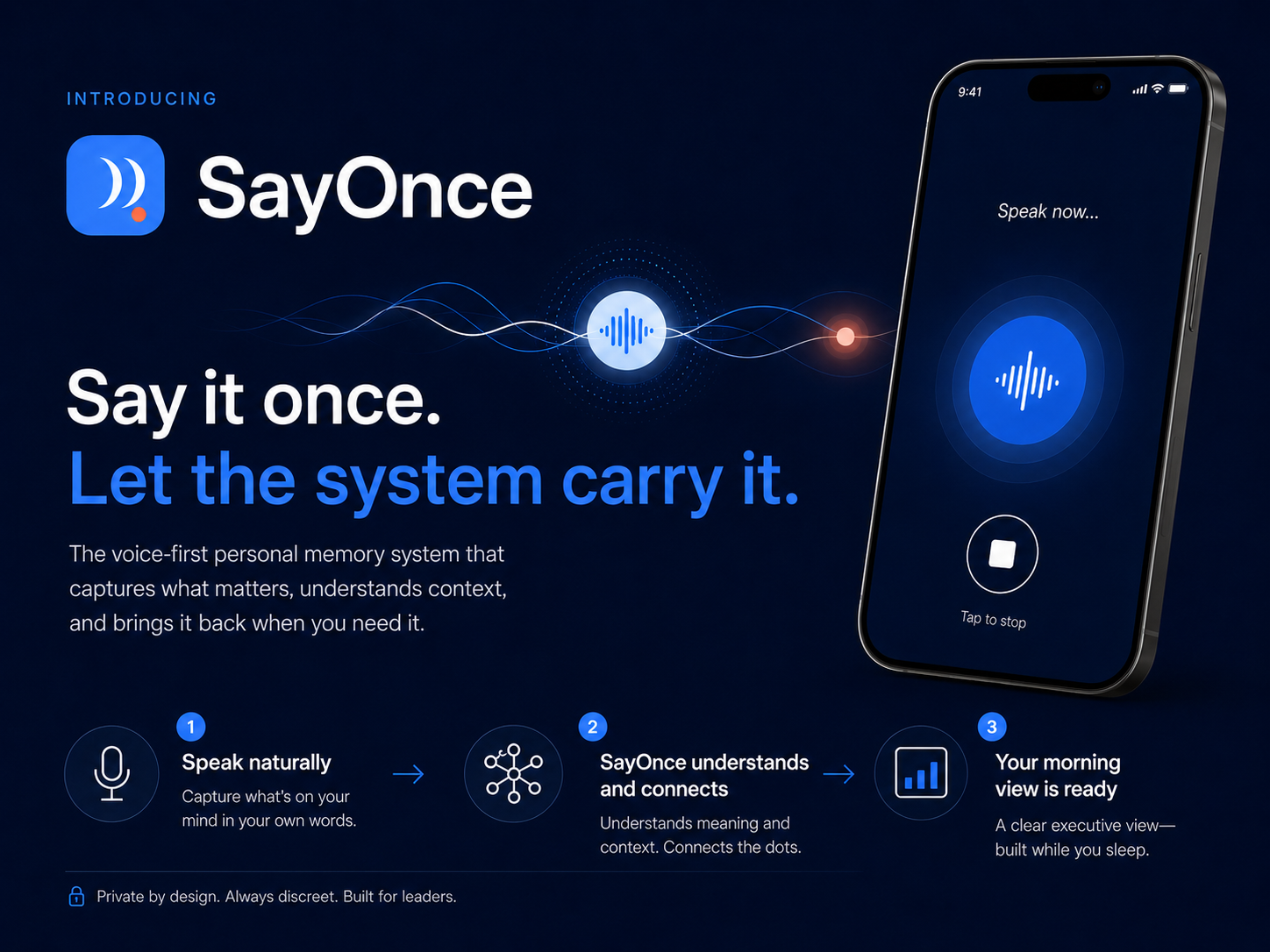
I am building the first version now. If this describes the way you work, reply with SayOnce. I would love to understand where your current system breaks.
Official setup references
The installation details in this guide were checked against the current (July 2026) official documentation for:
Apple Shortcuts app: creating multi-action shortcuts and using variables;
Apple iPhone: dictation and shortcut launch methods;
Google Workspace: Gmail labels, message search;
Anthropic: Claude Code installation, authentication, skills and CLI print mode.